How to use brook on OpenWrt One
Updated at: 2025-04-23
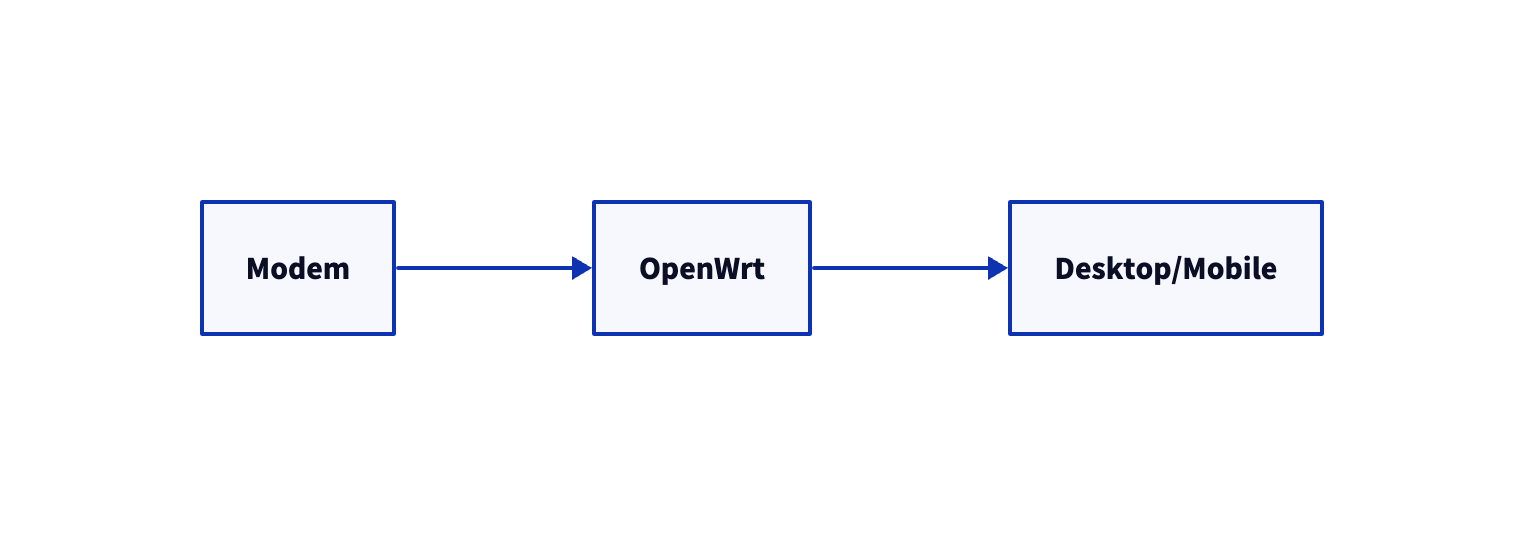
Power on OpenWrt One
Power on OpenWrt One
Use an Ethernet cable to connect the computer and the 1G network port of OpenWrt One
If the computer's IP is not in the same network, change it to the same network first
SSH into OpenWrt from the computer
ssh root@192.168.1.1Modify OpenWrt IP
uci set network.lan.ipaddr=192.168.2.1
uci commit
Restart or power off and restart
reboot
Access OpenWrt from a computer through a browser
Remove ULA
- Network - Interfaces - Global network options - IPv6 ULA-Prefix - Save & Apply
Connect the modem to the 2.5G network port of the router
Because most modems cannot send IPv6 PD, use OpenWrt to dial
- Network - Interfaces - wan - Edit - General Settings - Protocol: PPPoE - Switch protocol - username/password - Save - Save & Apply
- If a wan_6 is automatically created at this time, delete the previous wan6. Save & Apply
- If no IPv6 PD is obtained here. Please contact the ISP and say no to all non-Native solutions such as Relay and NAT6
Configure LAN
- Network - Interfaces - lan - Edit - Advanced Settings - IPv6 assignment length: 64
- Network - Interfaces - lan - Edit - DHCP Server - IPv6 RA Settings - RA Flags: None - Save - Save & Apply
Enable Wi-FI
- Network - Wireless - Edit and enable the channel 36 one
Test the network on the computer
Install brook CLI on the computer
At this time, re-plug the computer's network cable and automatically obtain the IP. You should be able to obtain GUA, and DNS should also be GUA
brook dnsclient -d txthinking.com -t A -s 192.168.2.1:53
brook dnsclient -d txthinking.com -t AAAA -s 192.168.2.1:53
brook dnsclient -d txthinking.com -t A -s [xxx]:53
brook dnsclient -d txthinking.com -t AAAA -s [xxx]:53
xxx is the IPv6 GUA DNS obtained by your computer
curl --http2 https://ipinfo.io/ip
curl --http3-only https://ipinfo.io/ip
curl --http2 https://v6.ipinfo.io/ip
curl --http3-only https://v6.ipinfo.io/ip
Test the network in OpenWrt
Download brook CLI, rename it to
brookand copy it to OpenWrt
brook dnsclient -d txthinking.com -t A -s 127.0.0.1:53
brook dnsclient -d txthinking.com -t AAAA -s 127.0.0.1:53
brook dnsclient -d txthinking.com -t A -s [::1]:53
brook dnsclient -d txthinking.com -t AAAA -s [::1]:53
curl --http2 https://ipinfo.io/ip
curl --http3-only https://ipinfo.io/ip
curl --http2 https://v6.ipinfo.io/ip
curl --http3-only https://v6.ipinfo.io/ip
You can also test your Brook Server
brook testbrook --link 'brook://...'
If necessary, upgrade OpenWrt
As of this article, the latest version is 24.10.0, download openwrt-24.10.0-mediatek-filogic-openwrt_one-squashfs-sysupgrade.itb
Upgrade via OpenWrt web
- System - Backup / Flash Firmware - Flash images
Install dependencies
Check /etc/opkg/distfeeds.conf
src/gz openwrt_core https://downloads.openwrt.org/releases/24.10.0/targets/mediatek/filogic/packages
src/gz openwrt_base https://downloads.openwrt.org/releases/24.10.0/packages/aarch64_cortex-a53/base
src/gz openwrt_kmods https://downloads.openwrt.org/releases/24.10.0/targets/mediatek/filogic/kmods/6.6.73-1-d649d775435da5a8637f7a955a80d331
src/gz openwrt_luci https://downloads.openwrt.org/releases/24.10.0/packages/aarch64_cortex-a53/luci
src/gz openwrt_packages https://downloads.openwrt.org/releases/24.10.0/packages/aarch64_cortex-a53/packages
src/gz openwrt_routing https://downloads.openwrt.org/releases/24.10.0/packages/aarch64_cortex-a53/routing
src/gz openwrt_telephony https://downloads.openwrt.org/releases/24.10.0/packages/aarch64_cortex-a53/telephony
opkg update
opkg install ca-bundle kmod-nf-socket kmod-nft-socket kmod-nf-tproxy kmod-nft-tproxy procps-ng-ps
Run brook.openwrt
Download brook.openwrt CLI renamed to
brook.openwrtand copied to OpenWrt
brook.openwrt --link 'brook://...'
Test the network on your computer
Take a look at the two DNSs assigned to your computer, one IPv4, one IPv6
brook dnsclient -d txthinking.com -t A -s 192.168.2.1:53
brook dnsclient -d txthinking.com -t AAAA -s 192.168.2.1:53
brook dnsclient -d txthinking.com -t A -s [xxx]:53
brook dnsclient -d txthinking.com -t AAAA -s [xxx]:53
xxx is the IPv6 GUA obtained by your computer DNS
Test IPv4 and IPv6, TCP and UDP, of course your Brook Server should support dual stack
curl --http2 https://ipinfo.io/ip
curl --http3-only https://ipinfo.io/ip
curl --http2 https://v6.ipinfo.io/ip
curl --http3-only https://v6.ipinfo.io/ip
Known Bug
The IPv4 obtained by the device under Wi-FI through DHCP will disappear after a while, and it will take more than ten seconds to get it again. There is no problem with IPv6 obtained through SLAAC. It should be a Bug in the OpenWrt One driver or OpenWrt 24.10.1